ClockWise HRGuideSending a message
Sending a message
Messages are conversations between users of ClockWise — one other person, or a group — with replies, attachments and an unread count, without leaving the system.
- Your user account must have Enable Messaging ticked — see Adding a user. Only users with it ticked can be messaged.
- Reading and replying, starting a conversation, and starting a group conversation are three permissions. Rami Azar, in the demo, can read and reply to conversations he is in, but not start one.
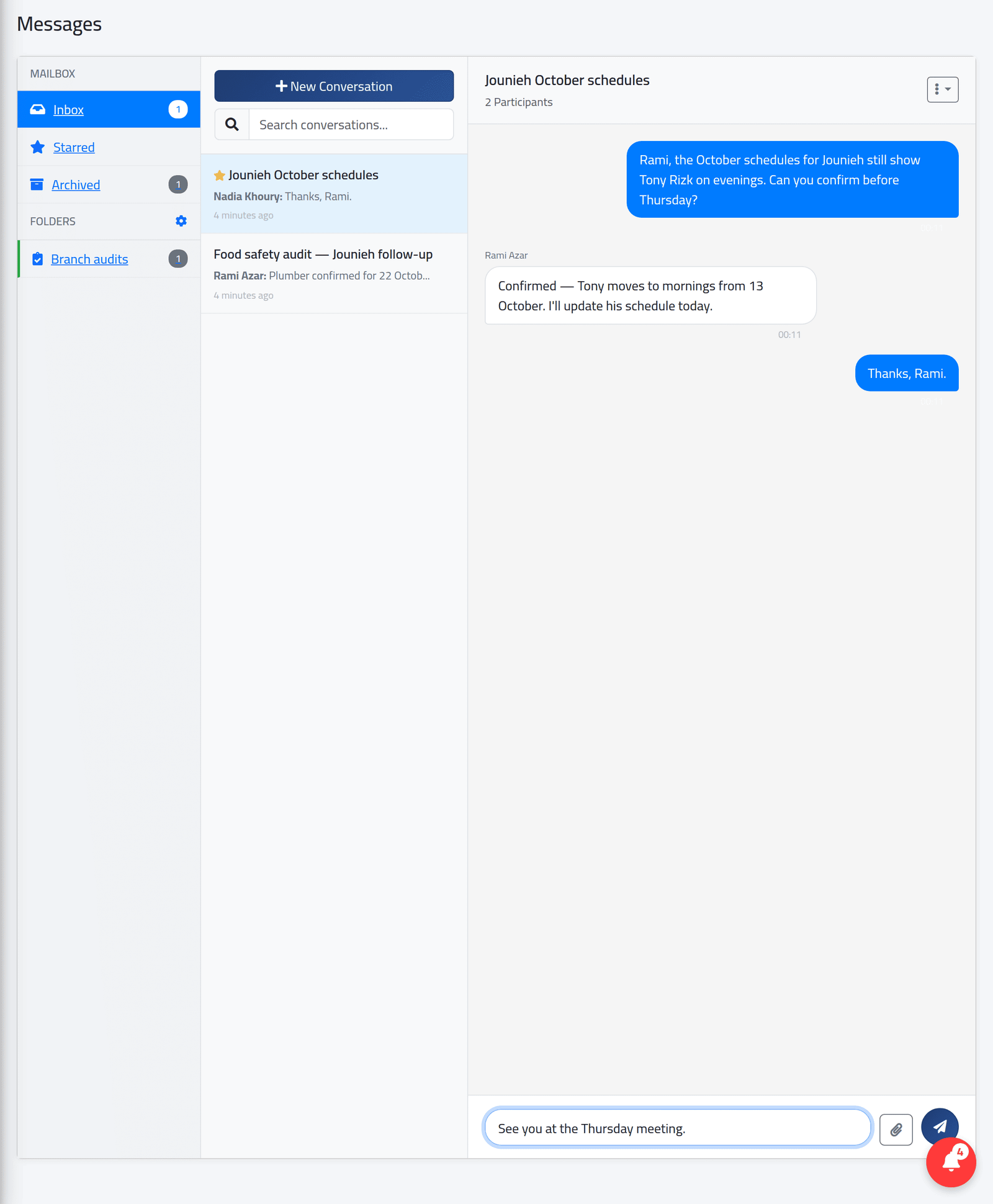
Two layouts. The administrator chooses how messages look for everyone, under Messaging Layout in the company settings: Chat, with speech bubbles (shown here), or Email, with threads (shown in Organising conversations). Both work the same way.
1Open your messages
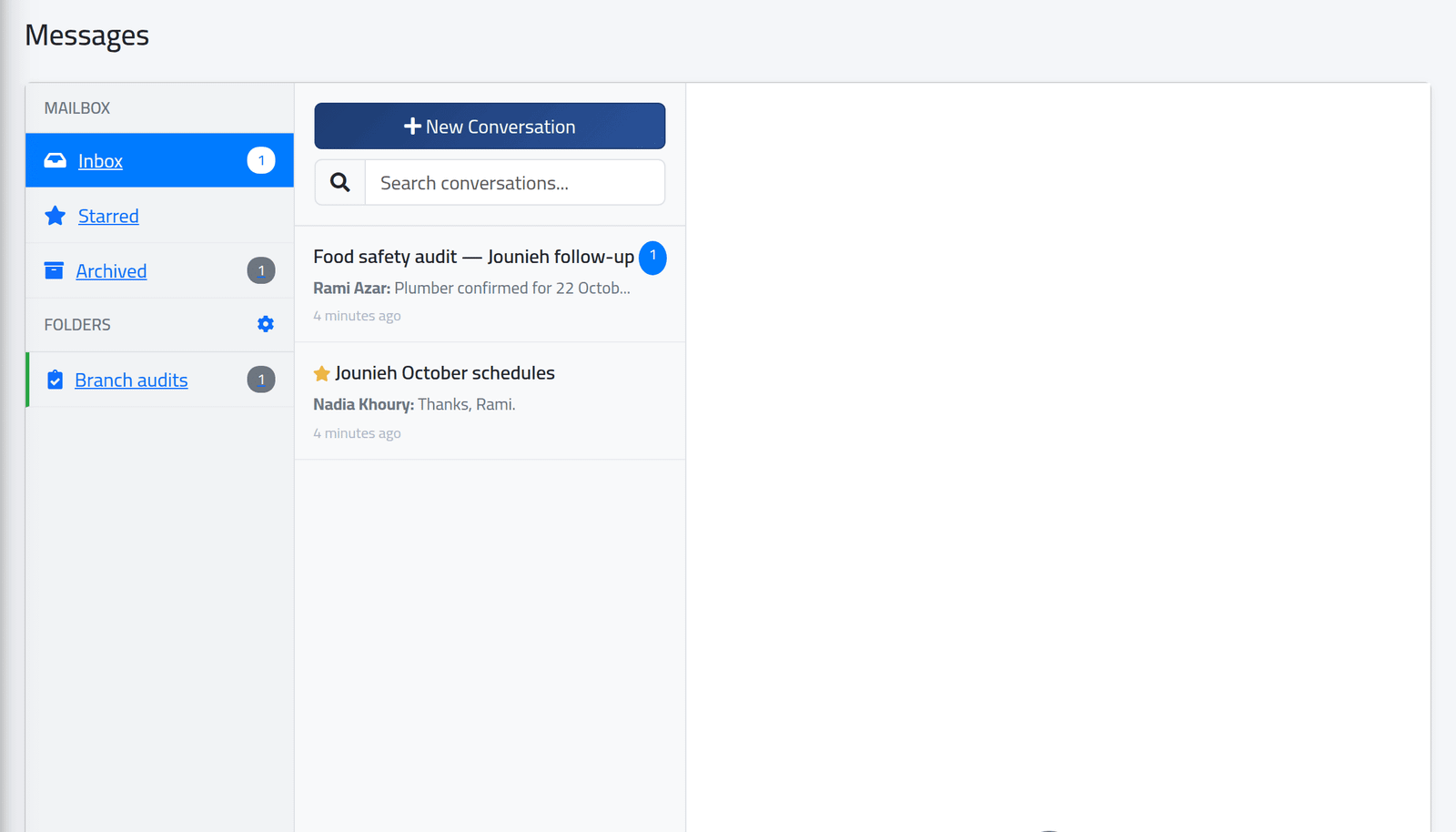
In the menu on the left, under Communication, click Messages. On the left, Inbox, Starred, Archived and your folders, with how many are unread. In the middle, your conversations, unread first, each with its last message.
2Start a conversation
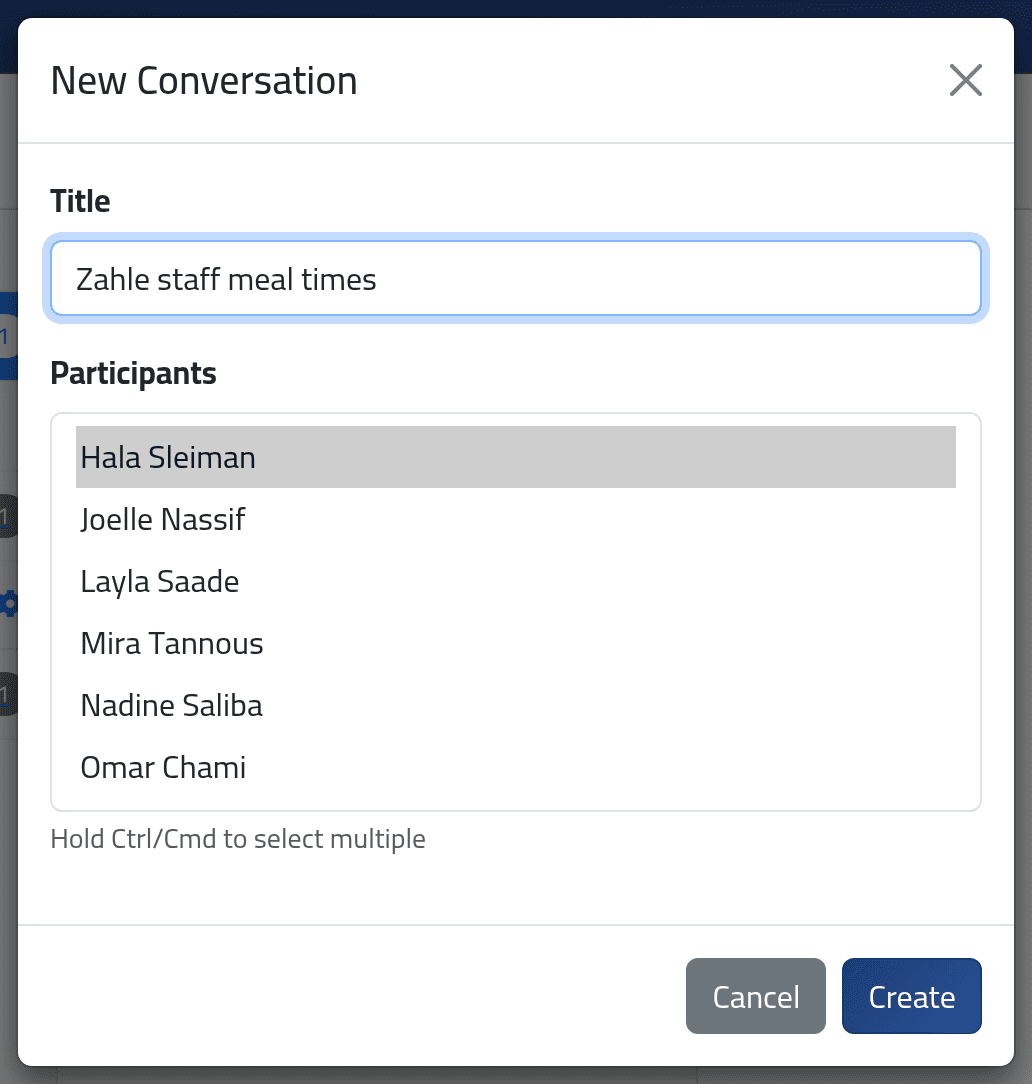
Click + New Conversation. Give it a Title — the subject — and choose the Participants: hold Ctrl (Cmd on a Mac) to choose several, which makes it a group. Click Create, then type the first message.
3Reply
Click a conversation to open it. Type in the box at the bottom; the paper clip attaches a file — a picture, PDF, Word, Excel or PowerPoint file up to 10 MB. Click the send arrow.
New messages from others appear by themselves while the conversation is open.
What happens next
The others see the conversation in their inbox, marked unread, and the red number at the top of their page counts their unread conversations.
If it goes wrong
| What you see | What it means |
|---|---|
| Messaging is disabled for your account. | Enable Messaging is off on your user account. |
| No + New Conversation | Your account may reply but not start conversations. |
| Only one participant can be chosen | Your account may not start group conversations. |
| A colleague is not in the list | Messaging is off on their account. |
| Replies are locked for this conversation. | Its owner has locked it — see Organising conversations. |
| The reply is refused: the conversation is closed | Its owner or the administrator has closed it. |