ClockWise HRGuideImport history
Import history
Every file imported, by whom and when, what each line did — and the original file, to download again.
The list shows everyone’s imports, from every branch. Opening another person’s import, or downloading their file, needs the import history permission; your own you can always open.
1Open the list
In the menu on the left, under General Settings, click data_imports.
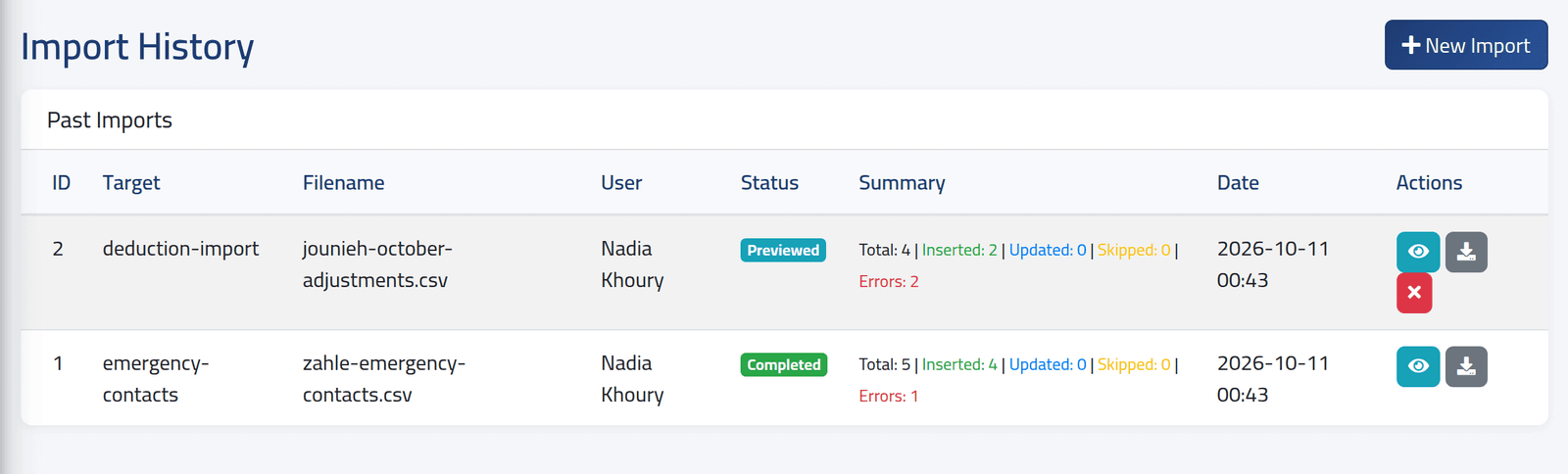
Each import with its target, file, who uploaded it, its status, the counts and the date. Its buttons: the eye opens it, the arrow downloads the file as uploaded, and the cross cancels an import not yet applied.
| Status | Means |
|---|---|
| Draft | uploaded, not previewed yet |
| Previewed | previewed, waiting to be applied — nothing written |
| Running | being applied |
| Completed | applied |
| Failed | stopped with an error |
| Cancelled | dropped before applying — nothing written |
In the picture, the Zahle emergency contacts are done; the Jounieh adjustments wait, previewed.
2Open one
Click the eye.
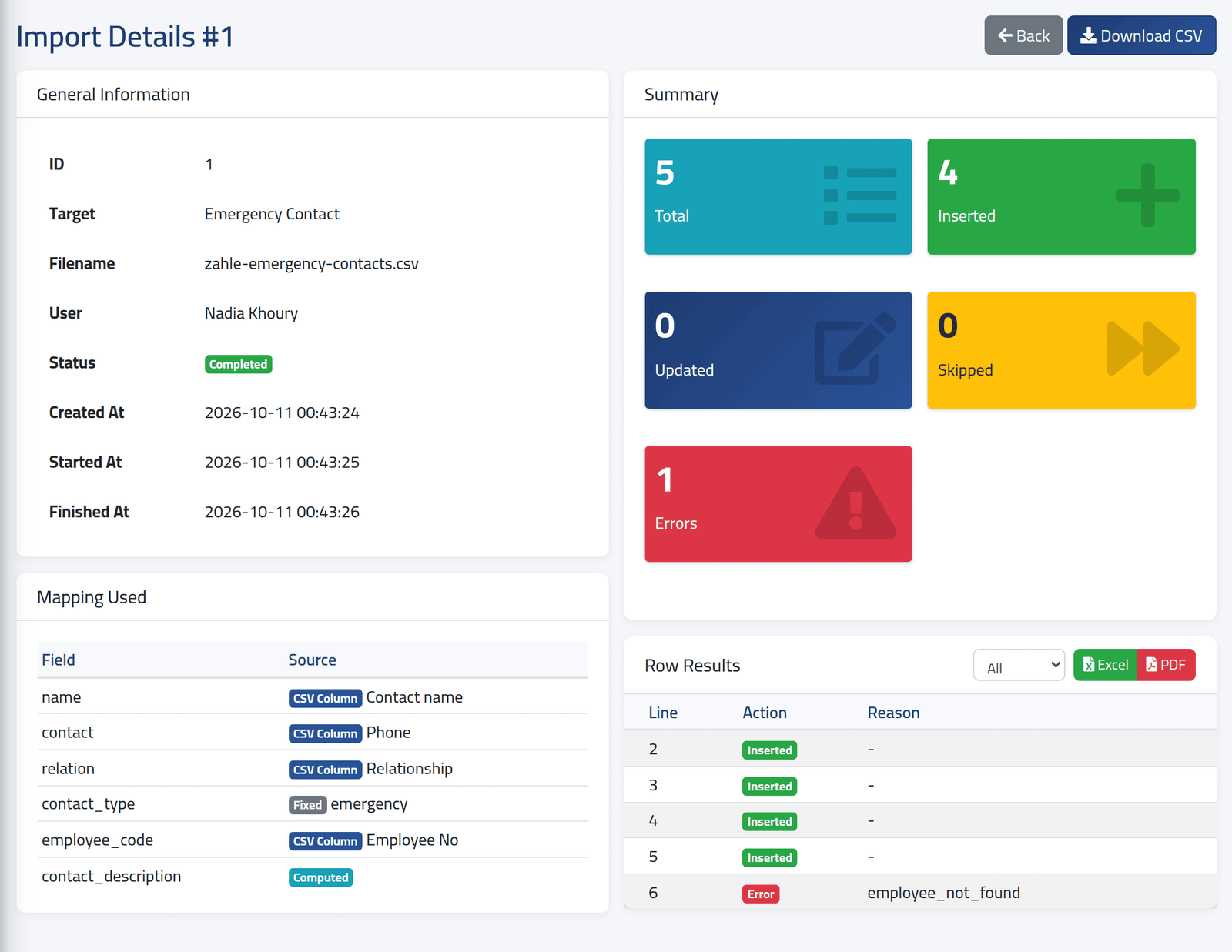
- General Information — who, when it was uploaded, started and finished.
- Summary — the counts.
- Mapping Used — which column of the file filled which field.
- Row Results — every line and what happened to it. The list above it shows only the inserted, updated, skipped or error lines; Excel and PDF save what is shown.
Download CSV gives back the file as it was uploaded.
In the picture, four of Zahle’s five contacts were added. Line 6 names an employee ID nobody has.
What happens next
To redo the error lines, put only those lines in a new file, correct them and import it — see Importing data from a file. Importing the whole file again would add its deductions, add-ons and payment accounts a second time.
If it goes wrong
| What you see | What it means |
|---|---|
| Unauthorized action on opening an import | It is someone else’s, and your account may not see others’ imports. |
| No download button | The import was cancelled, or never previewed. |
| Import cannot be cancelled in current status. | It has been applied — it can no longer be cancelled. |
| Excel gives a CSV file | That is what it produces; open it in your spreadsheet program. |