ClockWise HRGuideThe training calendar
The training calendar
Every scheduled, running, completed and cancelled session on one calendar, coloured by status — by month, by week, or as a list.
Your account must be allowed to see the training calendar. Opening a session from it also needs permission to see sessions.
1Open it
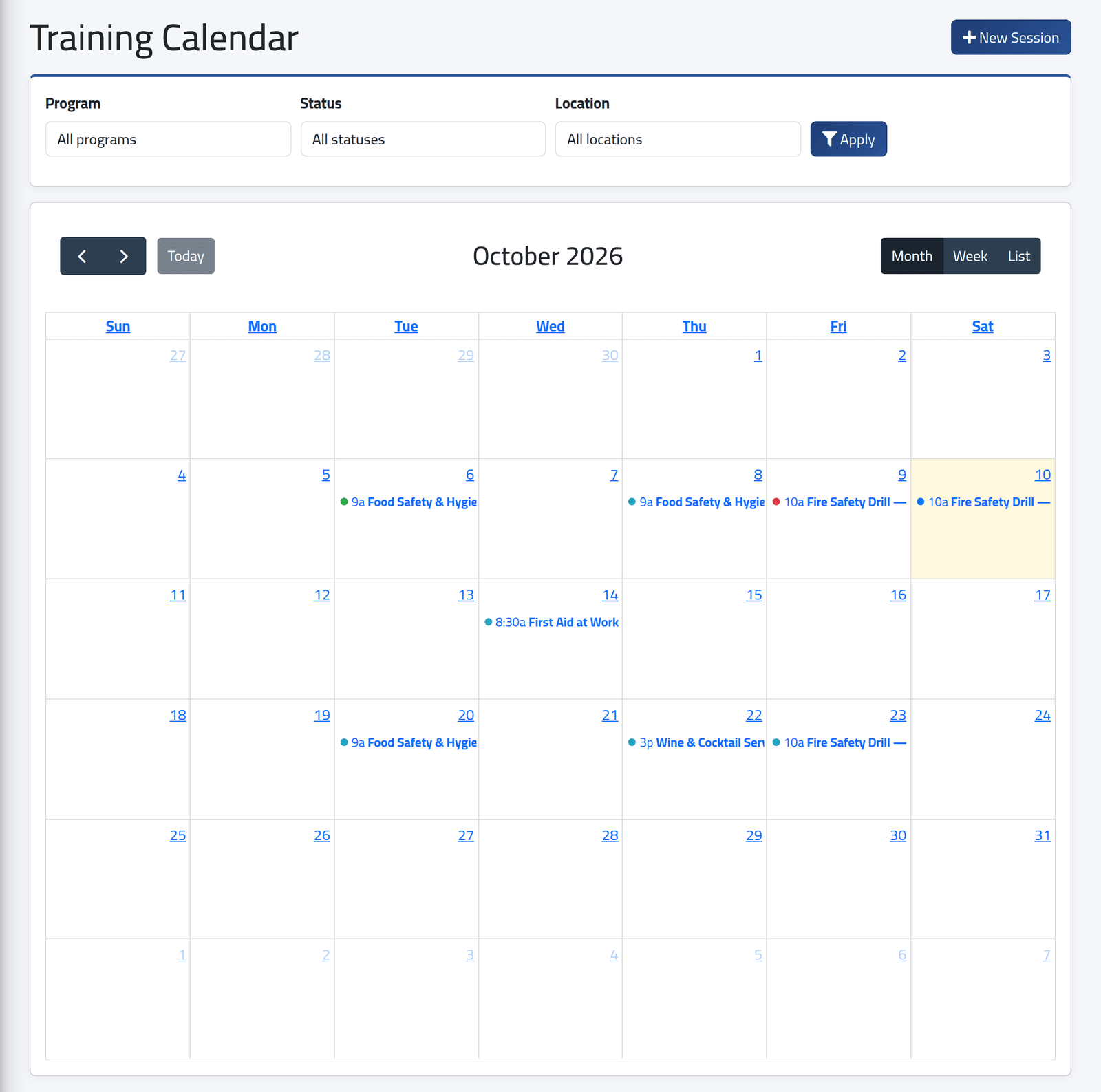
In the menu on the left, under Training, click Training Calendar. It opens on the current month, today highlighted.
| Colour | Status |
|---|---|
| Teal | Scheduled |
| Blue | In Progress |
| Green | Completed |
| Red | Cancelled |
Drafts are never shown.
Narrow it with Program, Status and Location, then click Apply. The lists offer only programs and branches that have sessions to show.
2Point at a session
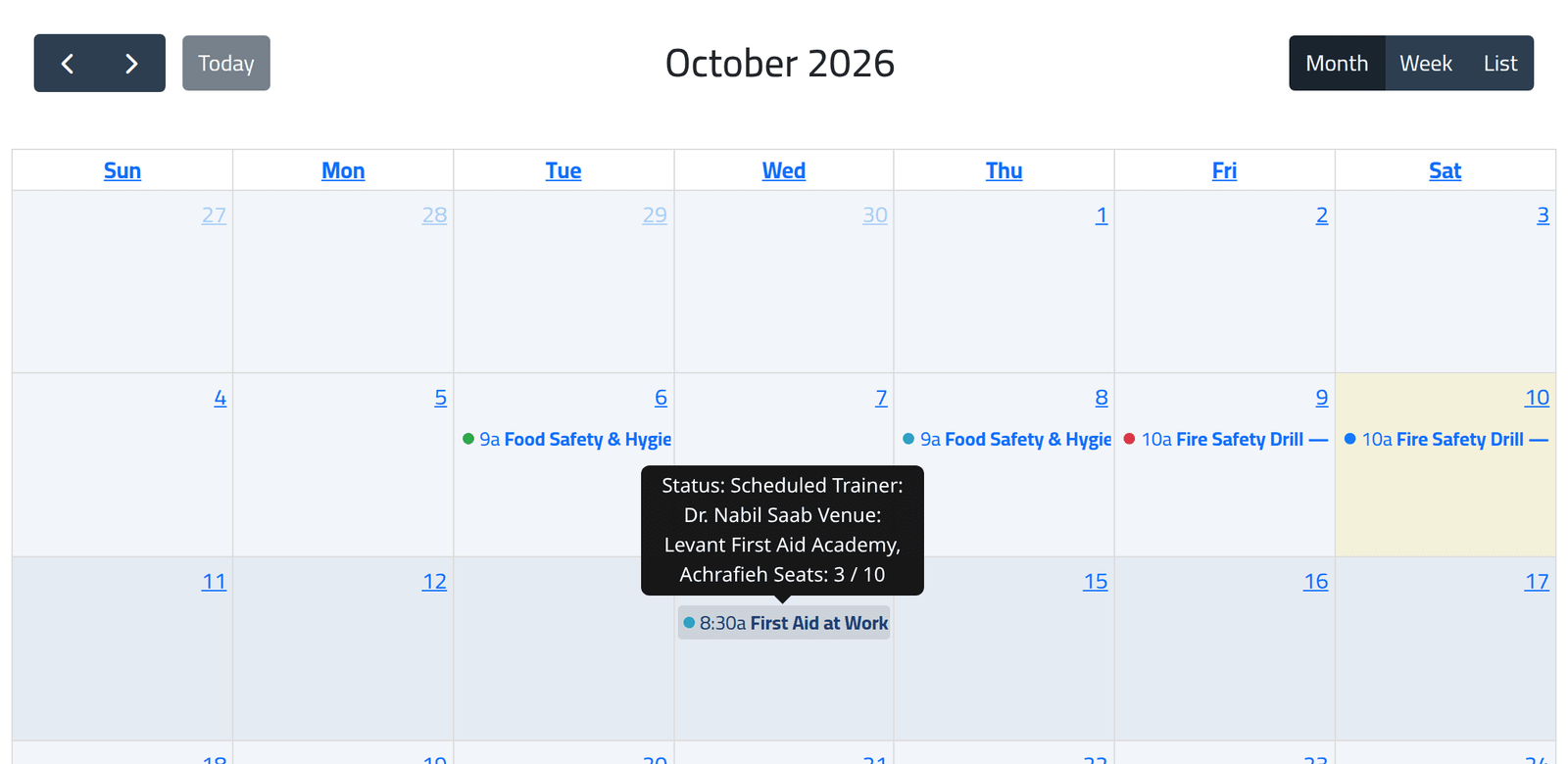
Its status, trainer, venue and seats — here 3 of the 10 places on the First Aid course are taken. Click it to open the session.
3Another view
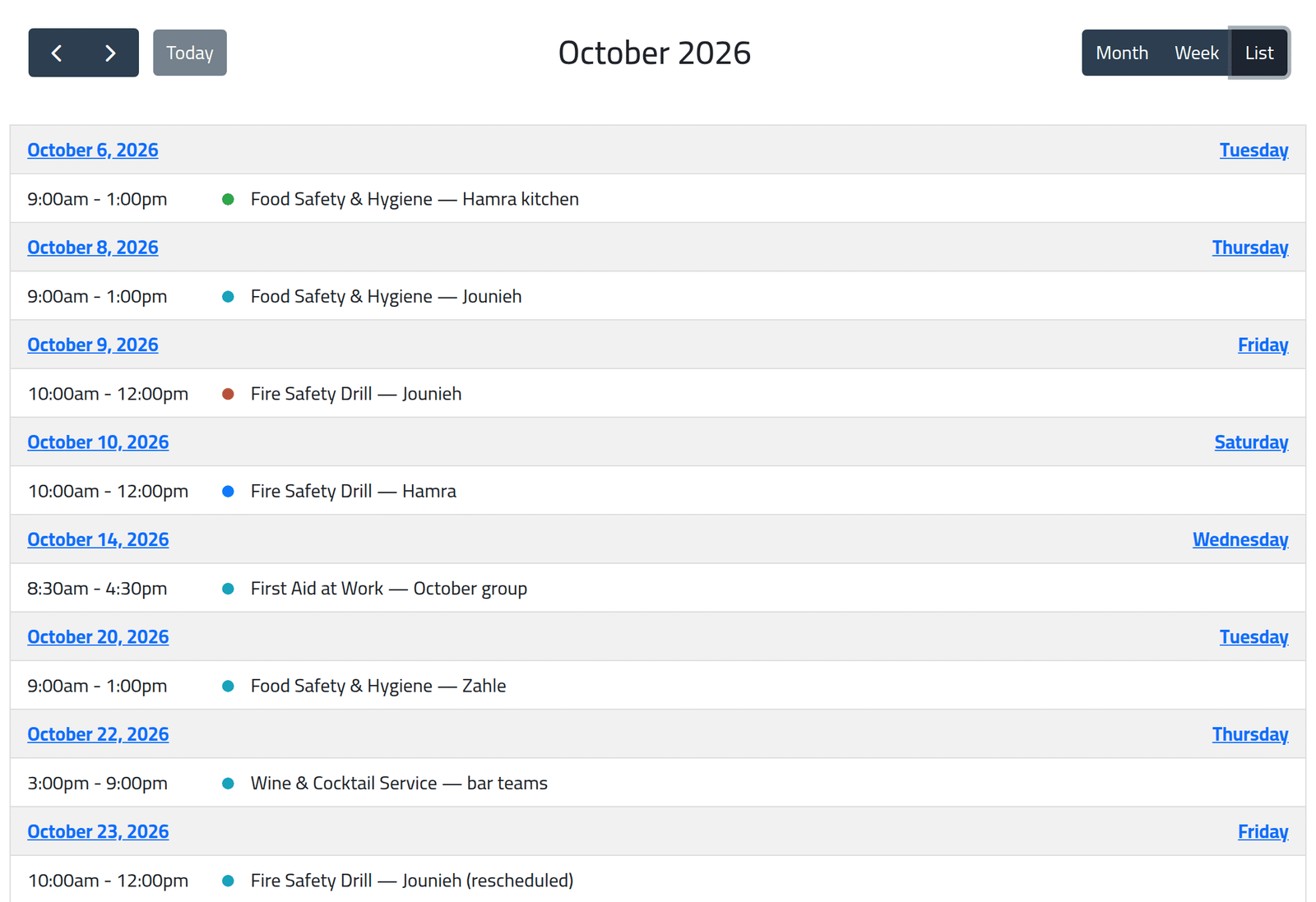
Week shows the hours of each day; List shows the month day by day, with full titles and times. The arrows move by month or week, and Today comes back.
What happens next
+ New Session on the calendar schedules one — see Scheduling a training session.
If it goes wrong
| What you see | What it means |
|---|---|
| A session is missing | It is a draft, or a filter is on. |
| Clicking a session does nothing | Your account may see the calendar but not sessions. |
| Unable to load the training calendar. | The sessions could not be fetched — reload the page. |