ClockWise HRGuideTraining materials
Training materials
Handouts, forms, slides and videos — as files or links. A file put on a program appears on every session of it; a file put on one session stays with that session.
Seeing and downloading materials is one permission; uploading and deleting them is another.
Decide where a file belongs:
- On the program — the same for every sitting, such as the handbook. Upload it from the program’s Materials tab (see Defining a training program).
- On the session — only for this sitting, such as a form filled in on the day. Upload it from the session’s Materials tab.
1See what is there
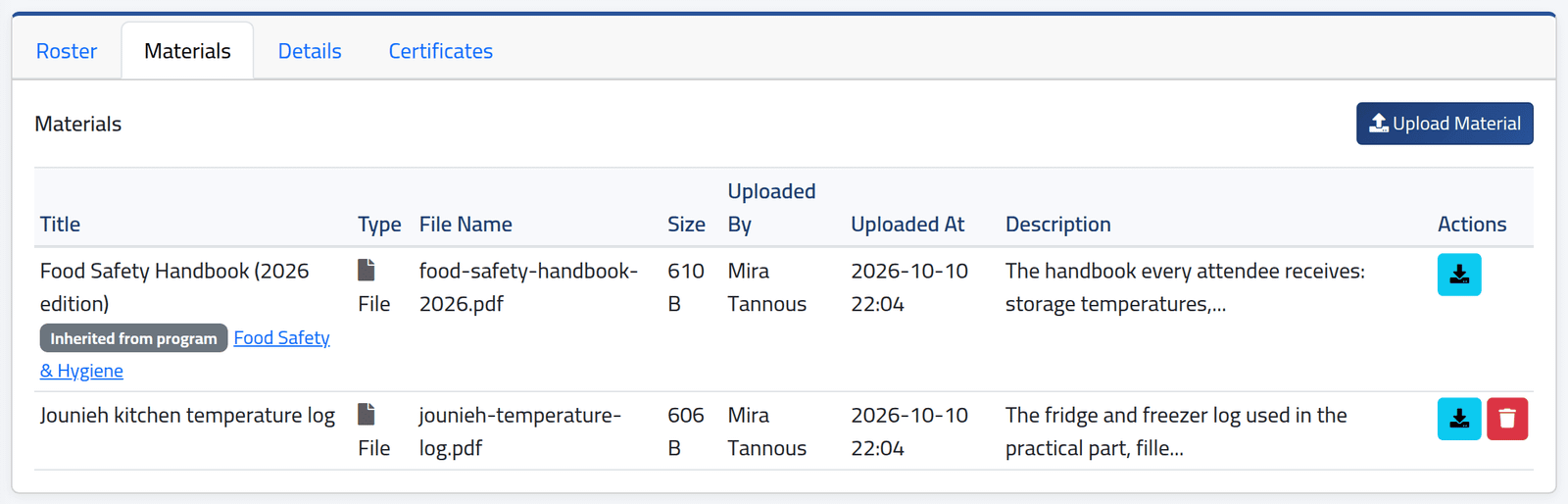
On the session, open Materials. The program’s own files come first, marked Inherited from program with a link to the program; the session’s files follow. Each with who uploaded it, when, its size and a description. The blue button downloads a file, or opens a link.
2Upload a file
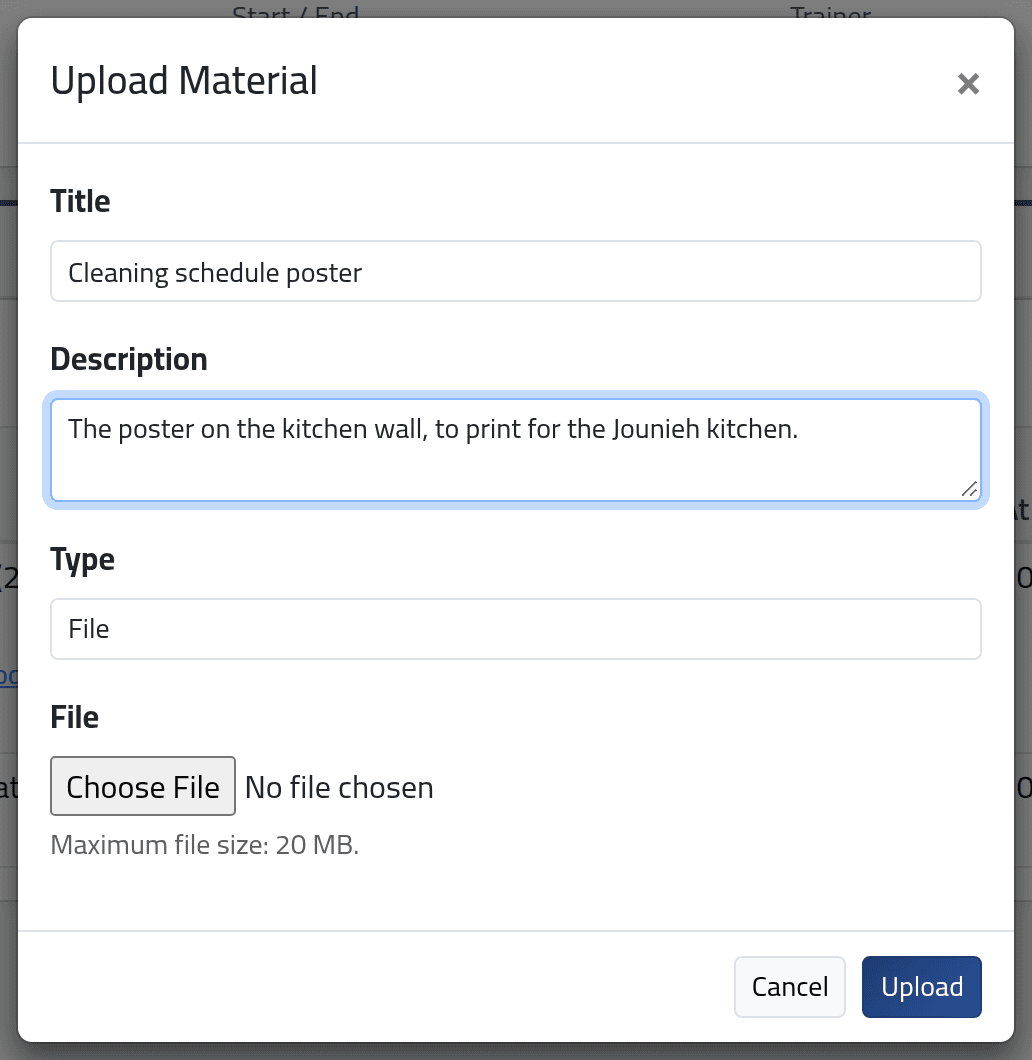
Click Upload Material. Give a Title and, if useful, a Description; leave Type on File and choose the file. Click Upload.
Accepted: PDF, Word, Excel, PowerPoint, text, CSV, JPG, PNG, GIF, ZIP and MP4, up to 20 MB.
3Or add a link
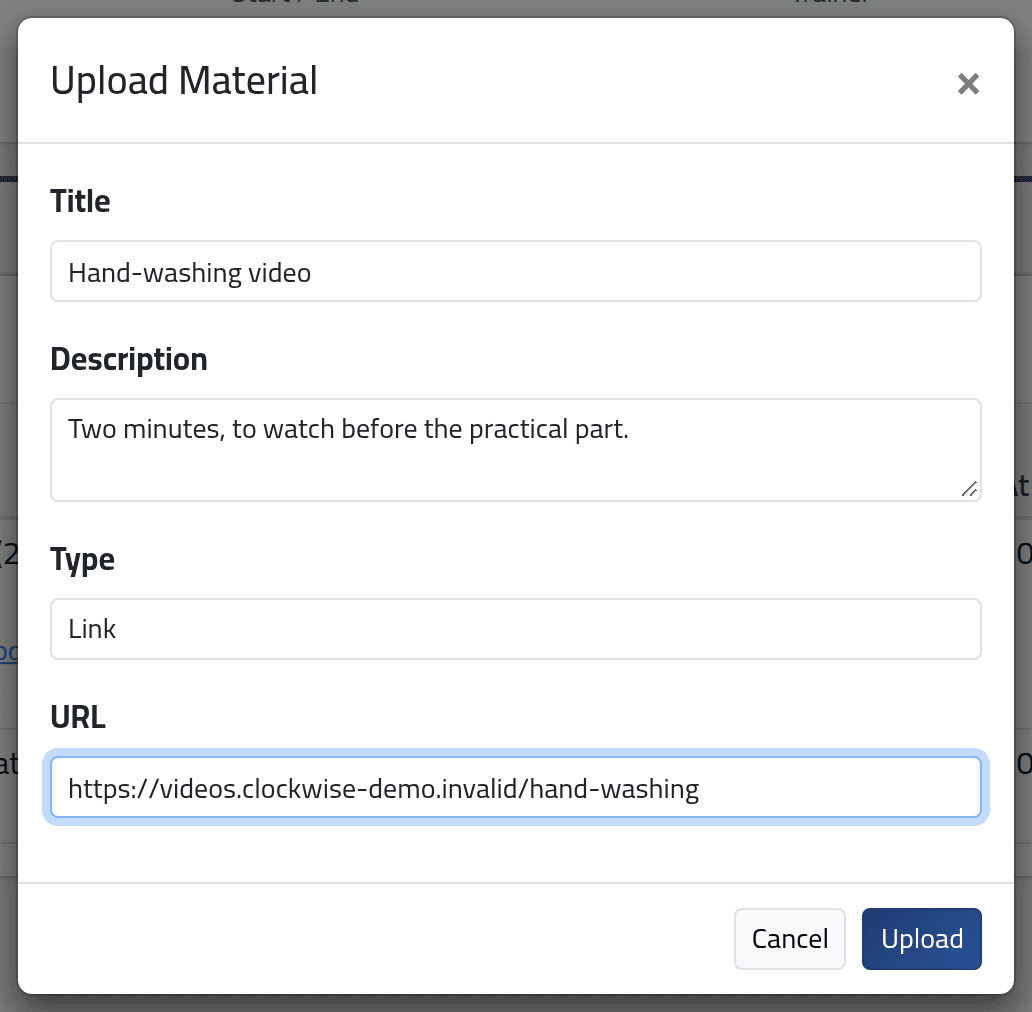
For a video or a page elsewhere, set Type to Link and give its URL instead of a file.
What happens next
The material is listed at once. Files are kept privately: only people allowed to see training materials can download them, through ClockWise.
The red button deletes a material. A program’s file can only be deleted from the program — on a session it has no delete button.
If it goes wrong
| What you see | What it means |
|---|---|
| File is too large. Maximum allowed size is 20 MB. | Compress it, or upload it elsewhere and add a link. |
| The file content does not match an allowed file type. | The file is not what its name says — a renamed file, for example. |
| Materials cannot be uploaded to a cancelled session. | Put it on the program, or on the session that replaced it. |
| No Upload Material | Your account may see materials but not upload them. |