ClockWise HRGuideFollowing your requests
Following your requests
Every correction you sent for approval, and what became of it. A rejected one carries the approver's reason; a pending one can still be withdrawn.
This screen is for accounts whose corrections go for approval. If your corrections apply straight away, you have no requests and the menu item is not there.
1Open your requests
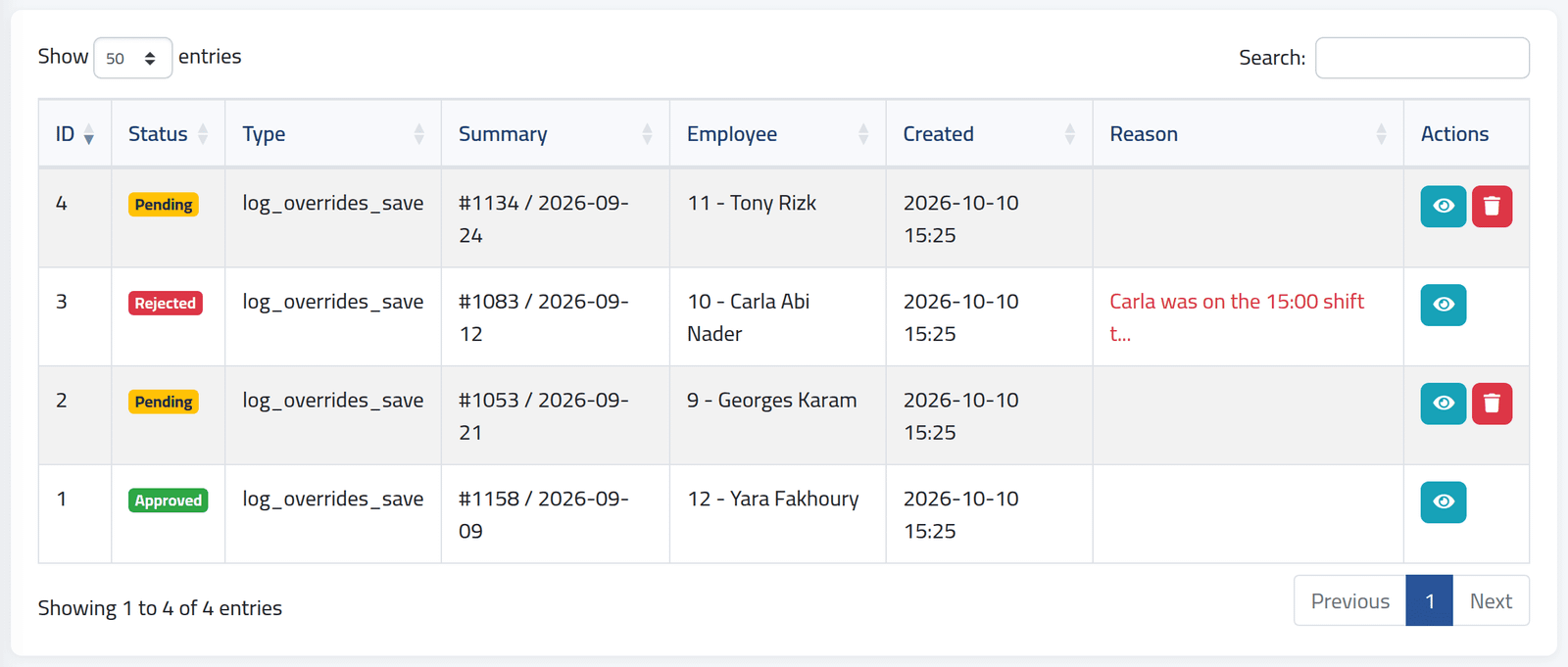
In the menu on the left, under Attendance Data, click My Change Requests.
Each row is one request: its Status — Pending, Approved or Rejected — the day and the employee, when you sent it, and the Reason if it was rejected. Filter by status, type or date at the top.
The Type column shows the system’s own names:
| Type | Is |
|---|---|
log_overrides_save |
punches added or changed |
log_overrides_reset |
a day’s corrections reset |
shift_change |
the day’s shift changed |
summary_edit |
the day edited, or applied as leave |
summary_reset |
a day reset |
2Read a decision
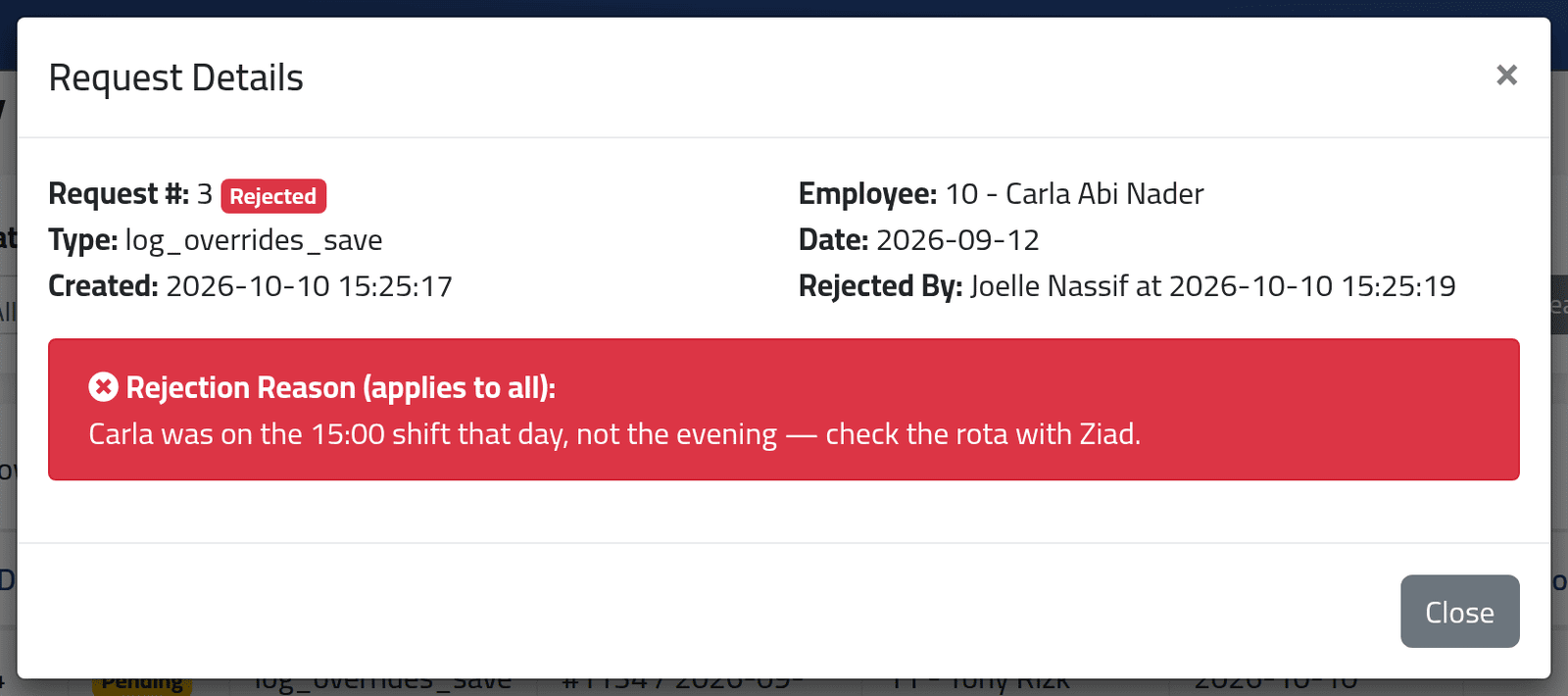
Click the eye on a request to see what you asked for and, if it was rejected, why.
3Withdraw a pending request
Click the bin on a pending request and confirm. Only pending requests can be withdrawn.
What happens next
An approved correction is already applied to the day. A rejected one changed nothing: read the reason, put it right, and send a new correction from Correcting a day — the rejected one stays in the list as a record.
If it goes wrong
| What you see | What it means |
|---|---|
| Only pending requests can be deleted. | It has already been decided. |
| A request you sent is not in the list | It was sent from another account. The list shows only your own. |
| There is no My Change Requests in your menu | Your corrections apply directly, or your account can only send leave for approval — such accounts cannot see this screen at present. |