ClockWise HRGuideAdding a user
Adding a user
An account for someone who signs in to ClockWise: a name, an email, a password and a role. The new account sees nothing until you give it branches, and the role offered first is admin — choose deliberately.
A user is an account, not an employee: someone can be on the payroll and never sign in, and an account need not belong to anyone on the payroll.
Decide the person’s role first — what they may do (see Roles). Adding users, editing them and changing their passwords are each a permission.
1Open the users
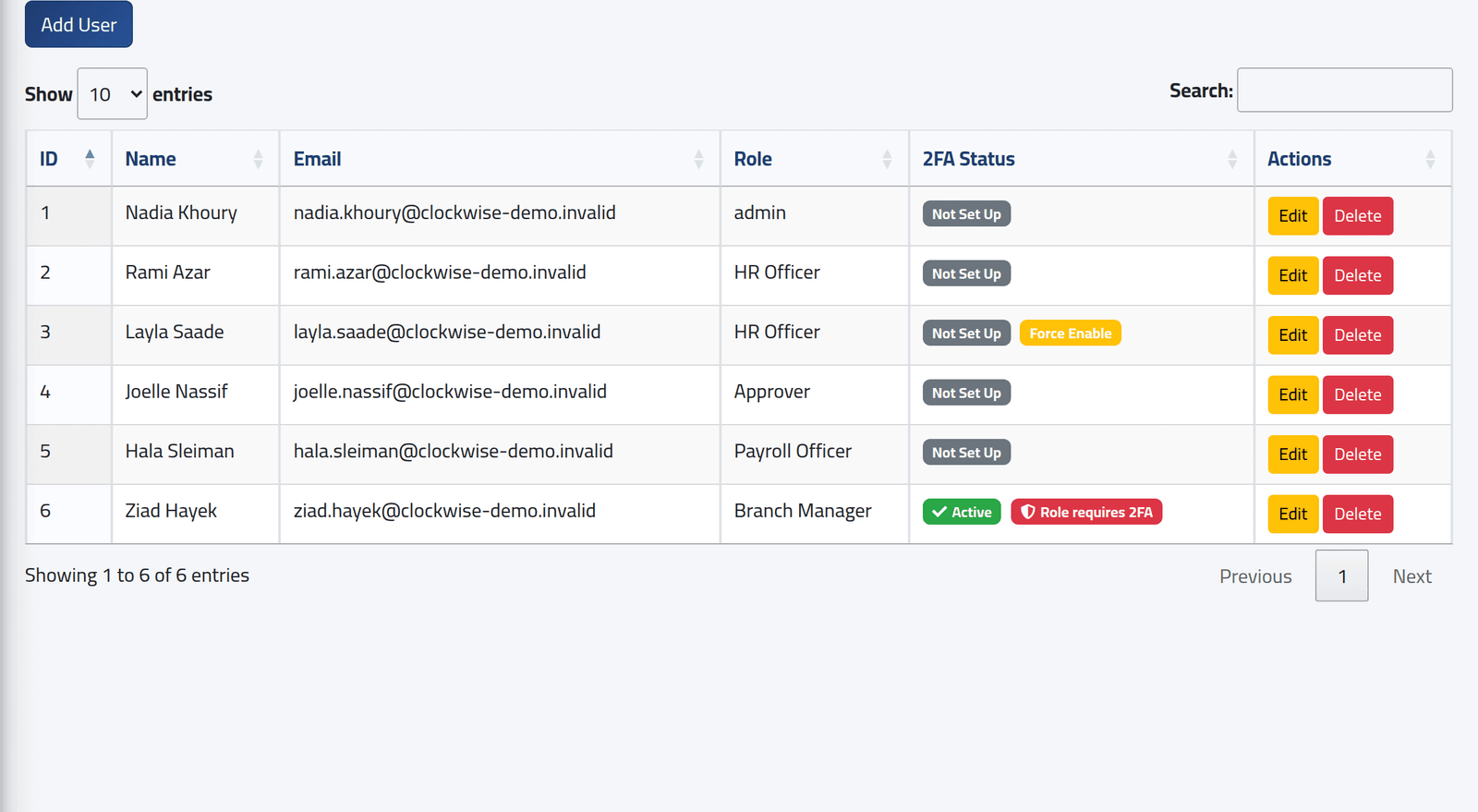
In the menu on the left, under Users, click Users.
Each account with its email, its role and its two-factor status: whether it is Active, and whether it is required (see Requiring two-factor sign-in).
2Add the account
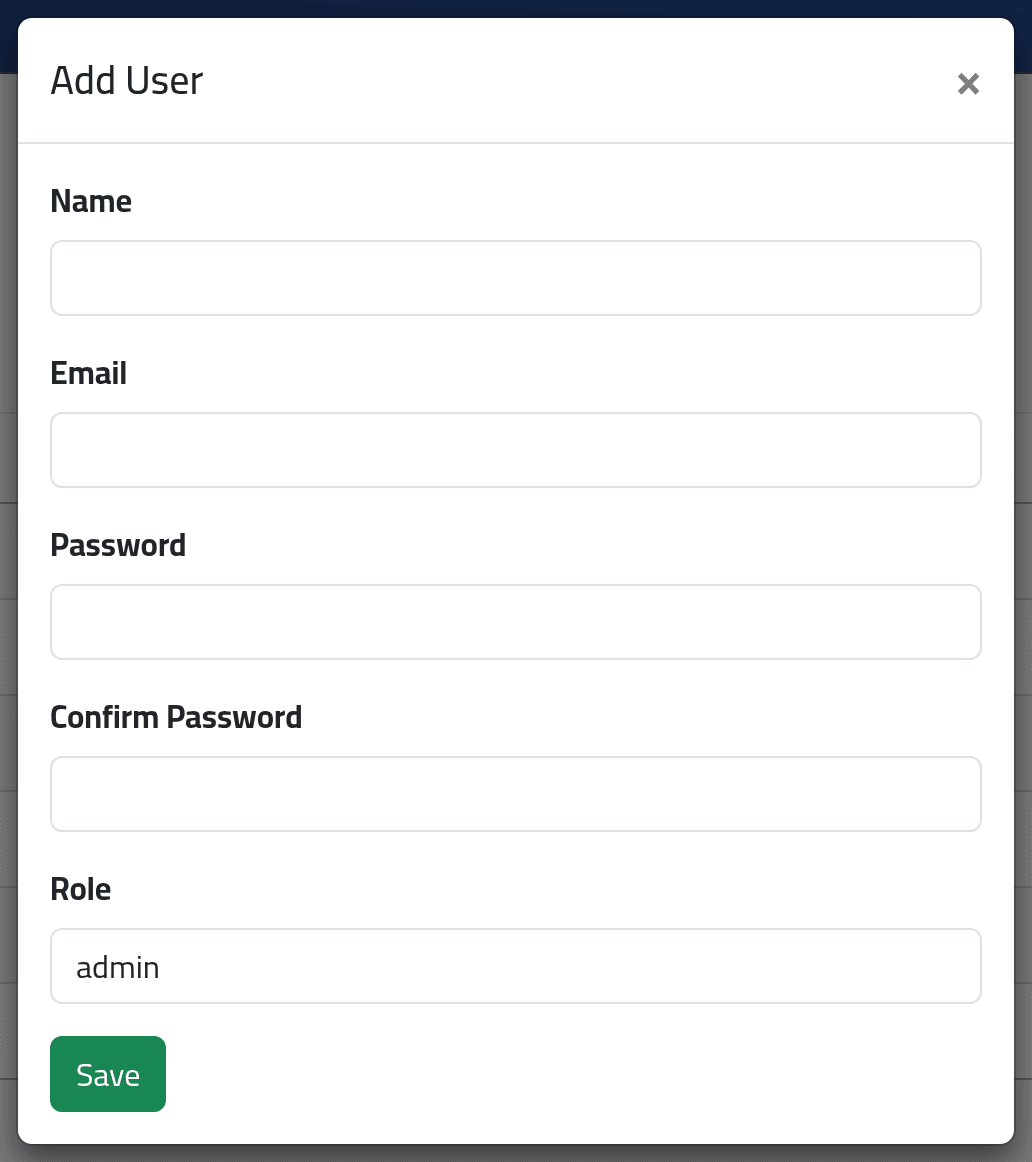
Click Add User.
- Name and Email — the email is what they sign in with, and each email can belong to one account only.
- Password and Confirm Password — at least six characters. Give it to the person in a way only they will see.
- Role.
Role starts on admin, the role with almost every permission. Saving without changing it creates another administrator.
Click Save.
3Give them branches
The new account has no branches, so it sees no employees and almost nothing else. Click Edit on its row and tick its Allowed Locations — see Deciding what someone can see. The same page sets two-factor and whether the person may use messages.
4Change someone's password
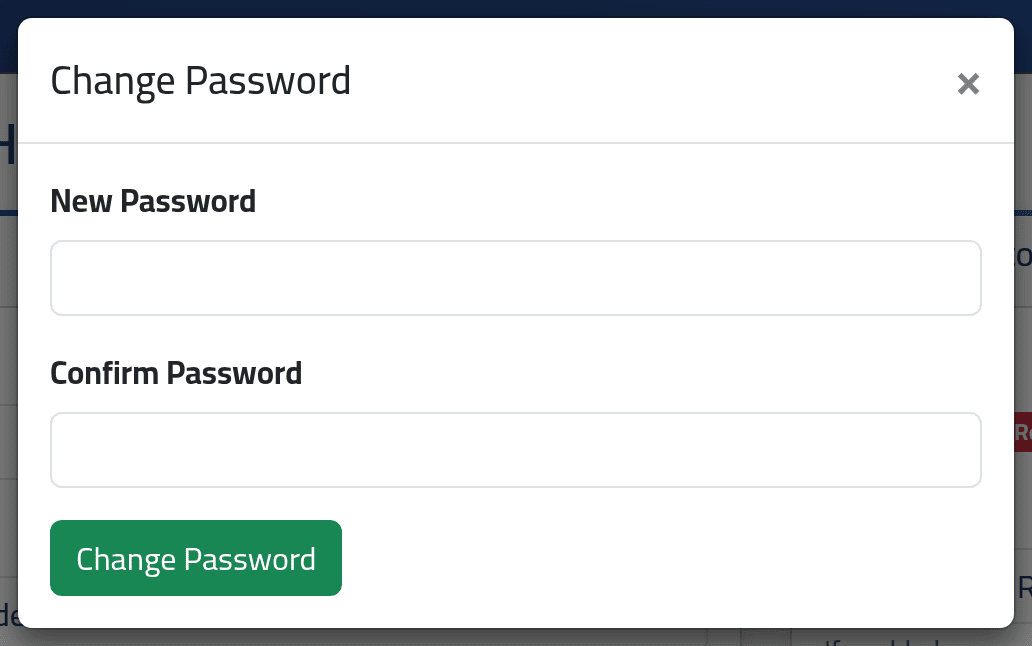
On the person’s Edit page, click Change Password, type the new password twice and click Change Password.
The person is signed out wherever they are signed in, and signs in again with the new password.
What happens next
The person signs in with the email and password — see Signing in for the first time. They can change their own password from the menu at the top; that keeps them signed in.
Delete does not remove anyone. It asks you to confirm and then does nothing: the account stays, and can still sign in. To stop someone signing in, change their password to one nobody knows. To stop them seeing anything, remove all their branches.
If it goes wrong
| What you see | What it means |
|---|---|
| The email has already been taken. | Another account has that email. |
| The password field confirmation does not match. | The two passwords differ. |
| A new user sees no employees | They have no branches yet — see Deciding what someone can see. |
| A new user can do everything | They were saved with the admin role. Edit them and choose the right role. |
| A deleted user is still in the list | Deleting does nothing — see above. |