ClockWise HRGuideAsset groups
Asset groups
Groups sort the store — Uniforms, Kitchen Tools, Electronics — and give every asset in them the first two letters of its code.
Your account must be allowed to manage asset groups.
1See the groups
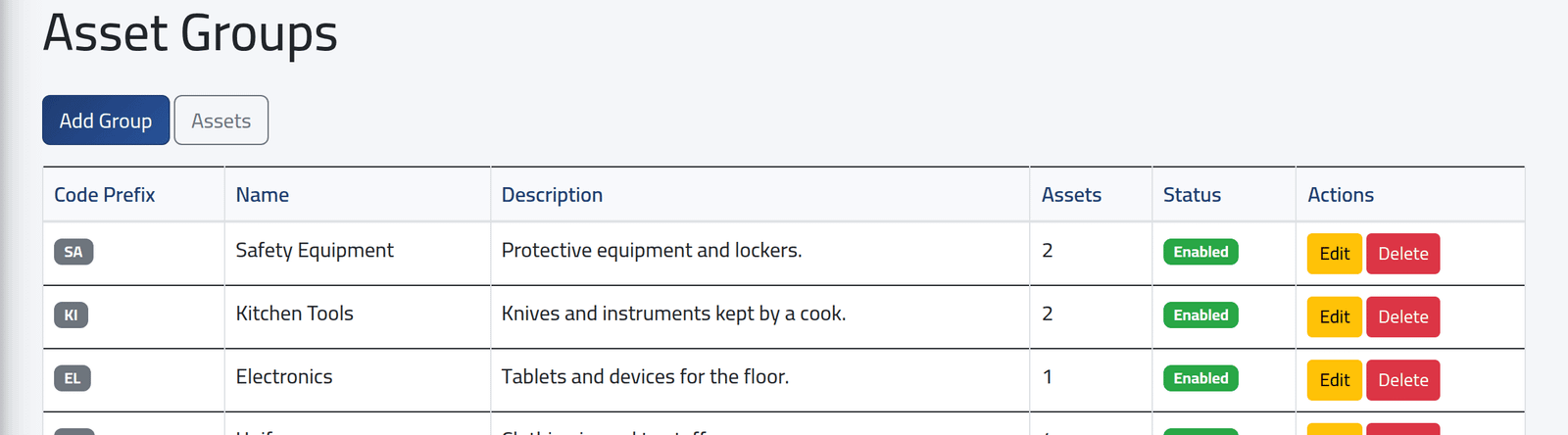
In the menu on the left, under Assets Management, click Asset Groups. Each group with its code prefix, description, how many assets it holds and whether it is enabled.
2Add one
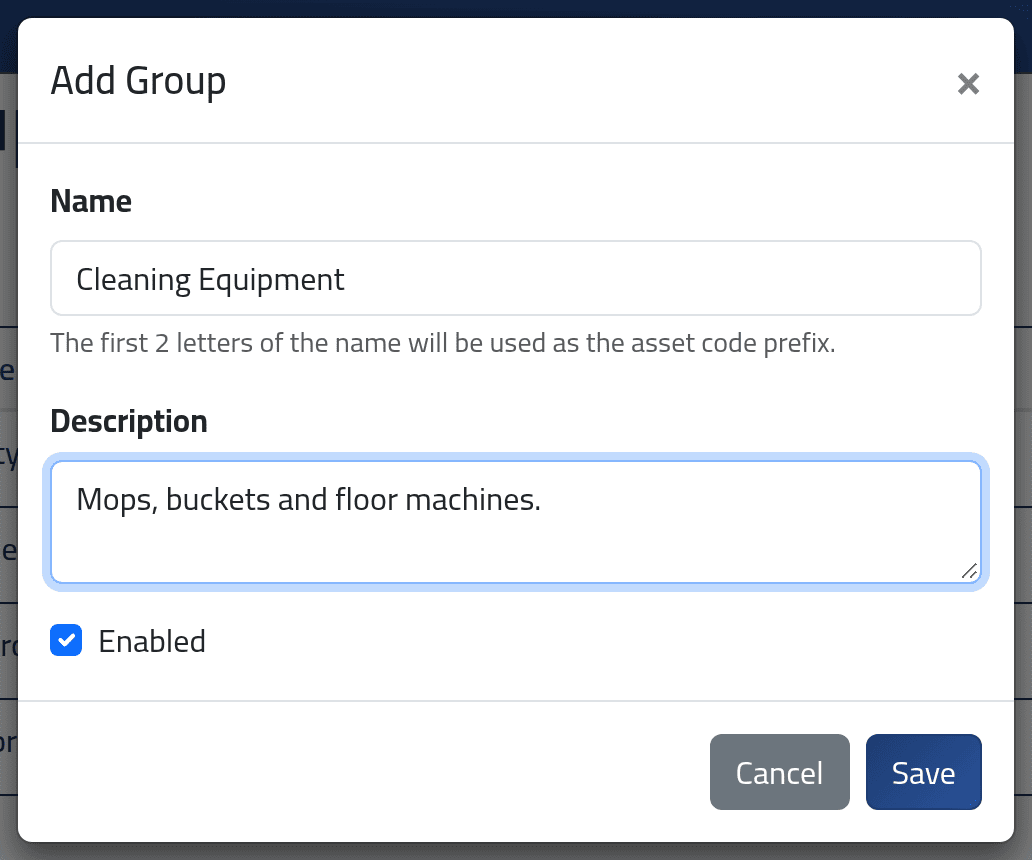
Click Add Group. Give the Name and a description, and keep Enabled ticked. Click Save.
What happens next
The group’s code prefix is the first two letters of its name, taken when the
group is created: Cleaning Equipment gives CL. It does not change if the
group is renamed later.
Name groups in Latin letters, and make the first two distinct. A name
with no Latin letters — an Arabic name — gets the prefix XX, and two groups
beginning with the same letters share a prefix, which makes codes harder to
tell apart.
A disabled group is not offered when adding an asset.
If it goes wrong
| What you see | What it means |
|---|---|
| Cannot delete a group that still has assets. | Move its assets to another group, or delete them, first. |