ClockWise HRGuideScheduling a training session
Scheduling a training session
A session is one sitting of a program: a date and time, a place, a trainer and a number of seats. It starts as a draft, filled in from the program, and becomes visible on the calendar once it is scheduled.
- The program must exist and be active — see Defining a training program.
- Your account must be allowed to manage training sessions.
1See what is planned
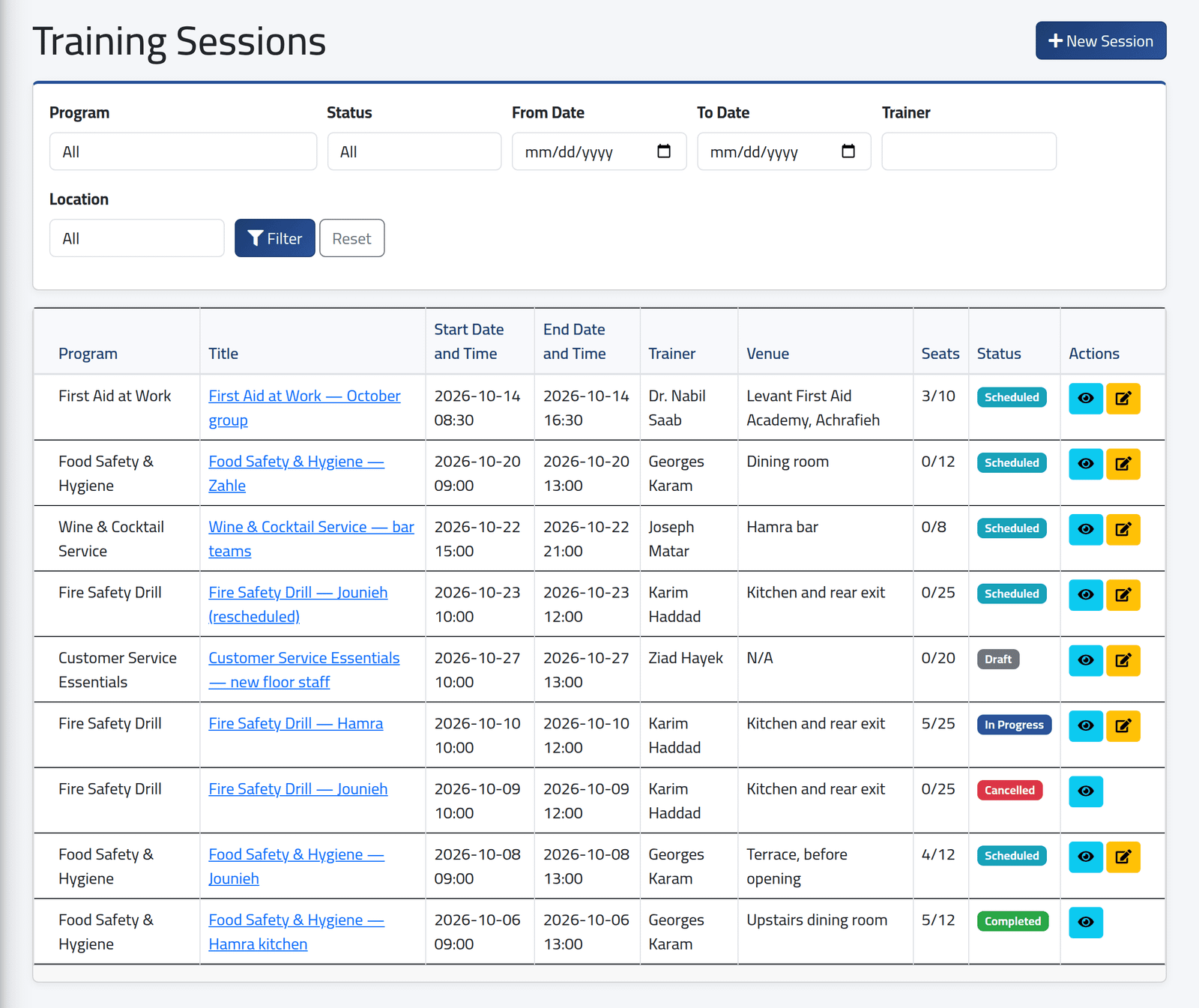
In the menu on the left, under Training, click Training Sessions.
Coming sessions come first, soonest at the top; past ones follow, most recent first. Each with its program, title, start and end, trainer, venue, seats taken out of capacity, and Status. Filter by program, status, dates, trainer or location.
The list shows every branch’s sessions to everyone who can see sessions. Which employees you can assign to one still depends on your branches.
Click + New Session. It is also on Training Calendar, and Create Session on a program’s page opens the same form with the program chosen.
2When
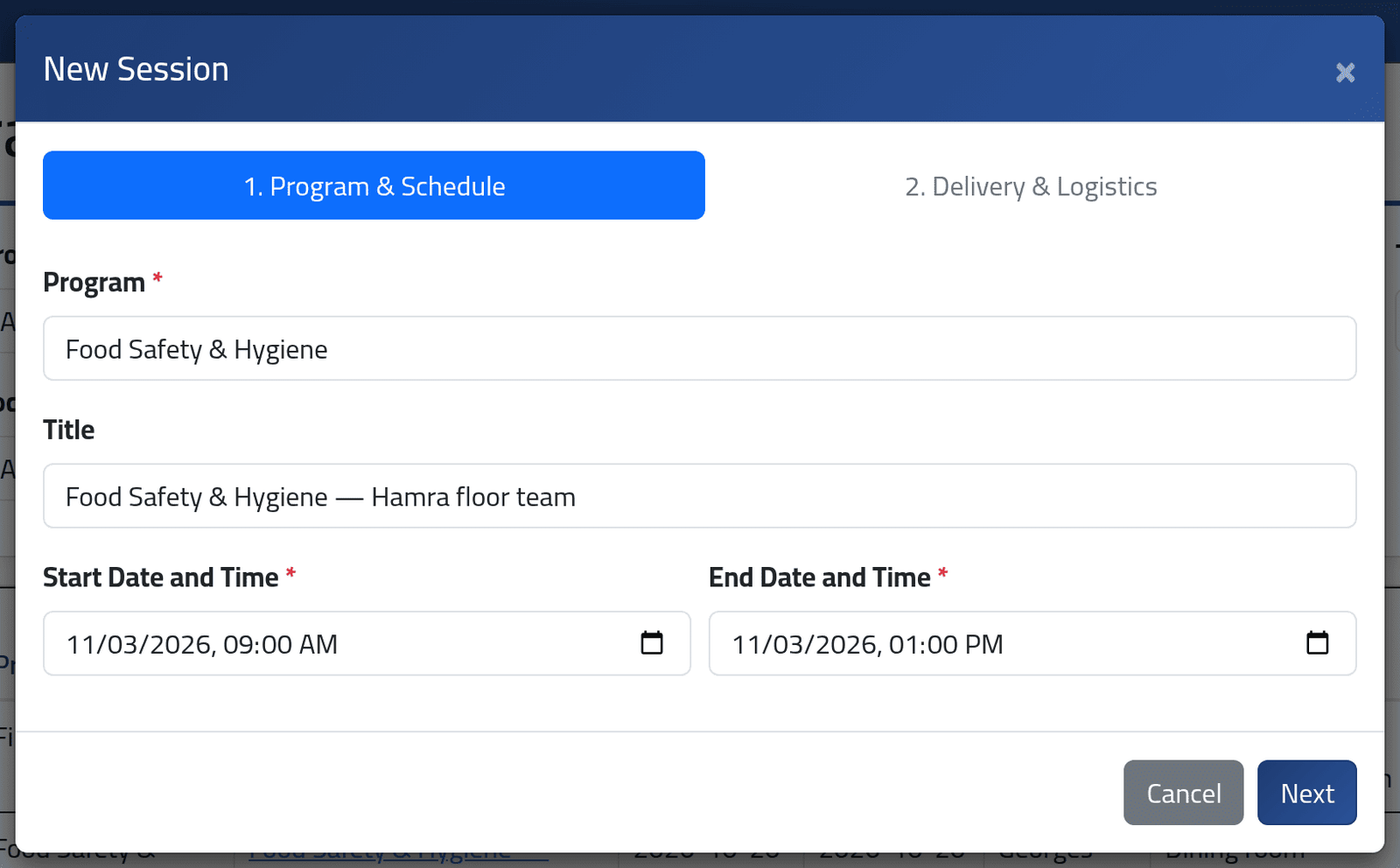
- Program — choosing one fills in the delivery mode, trainer, capacity and cost from it.
- Title — say which group or branch it is for. Left empty, the session is called by the program’s name, which is hard to tell apart in a list.
- Start Date and Time — the end is filled in from the program’s duration; change it if this sitting runs longer.
Click Next.
3Where and with whom
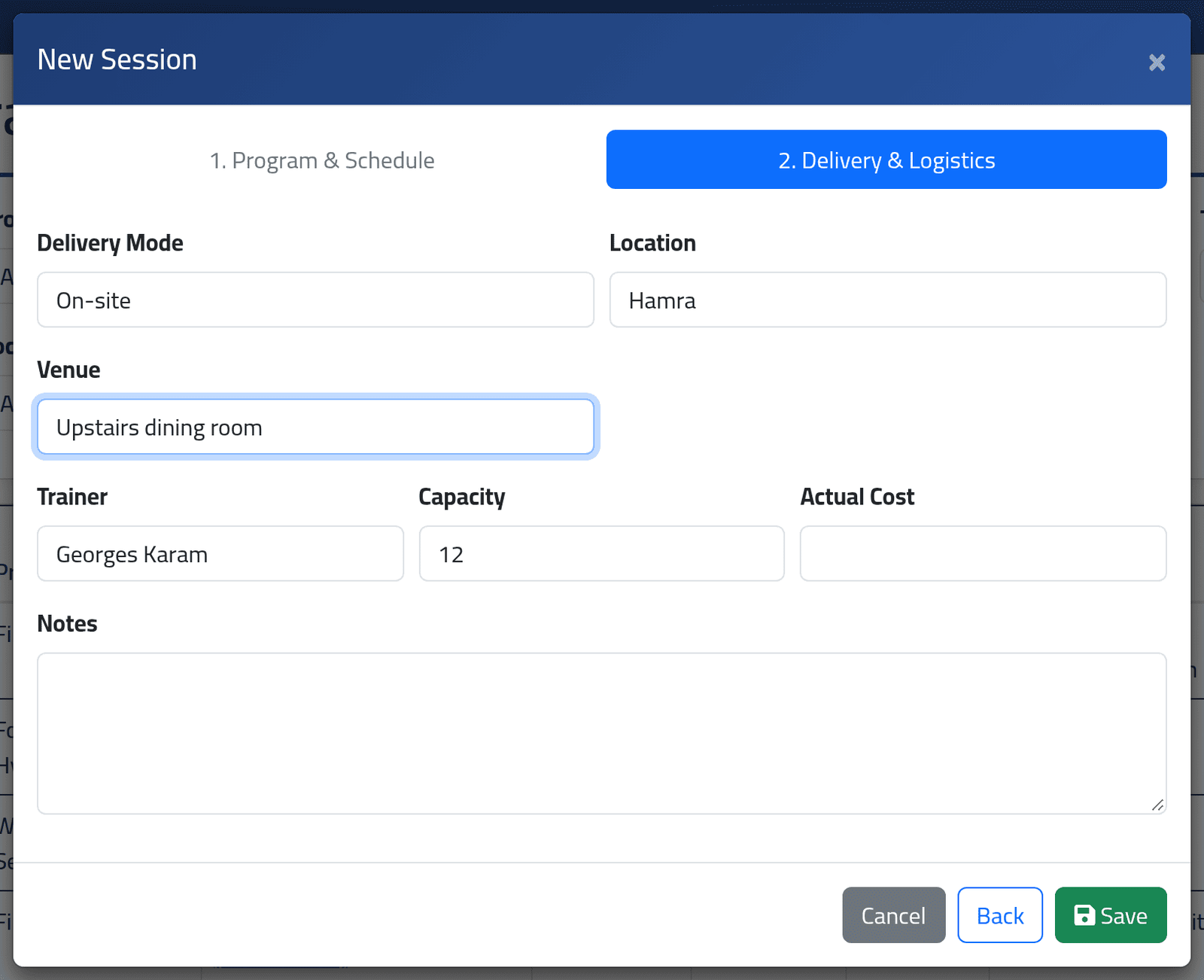
- Delivery Mode — choosing Online asks for the Online URL, which is then required.
- Location — the branch it is for; the calendar can filter by it. Leave it empty for training off site.
- Venue — the room, or the address of an outside provider.
- Trainer, Capacity, Actual Cost — from the program; change them for this session only.
- Notes.
Click Save.
What happens next
The session is saved as a Draft and opens on its own page. A draft is not on the calendar. When the date is settled, change it to Scheduled — see A session’s status — and assign the people attending.
Edit on the session changes any of it until the session is completed or cancelled.
If it goes wrong
| What you see | What it means |
|---|---|
| The program is not in the list | It is inactive — see Defining a training program. |
| A refusal on Online URL | An online session needs a full web address, such as one starting https://. |
| A refusal on the end | It is before the start. |
| The session is not on the calendar | It is still a draft. |
| No + New Session | Your account may see sessions but not manage them. |