ClockWise HRGuideClosing a salary period
Closing a salary period
Closing writes down each person's pay for the period as it stands, at their pay rate on the day you close, and from then on the days inside it cannot change. Nothing in ClockWise reopens a closed period, so check first.
Your account must be allowed to close salaries. Then go through this list. Every item is something closing makes permanent.
- No Error days left. In Reading a day’s attendance, filter the branch and the period by Error. An Error day is short pay for anyone paid by the day or the hour.
- No corrections waiting for approval. A request still pending at closing can be approved afterwards: the day changes, the closed salary does not. See Approving corrections.
- Every adjustment in. On Adjustments for the coming salary, filter by Orphaned: anything dated in the period that is still waiting will be left out.
- Pay rates up to date — and no newer ones yet. Each person is paid at the type and rate on their file at the moment you close.
- Locked and recalculated. See Recalculating and locking a period.
1Check the period
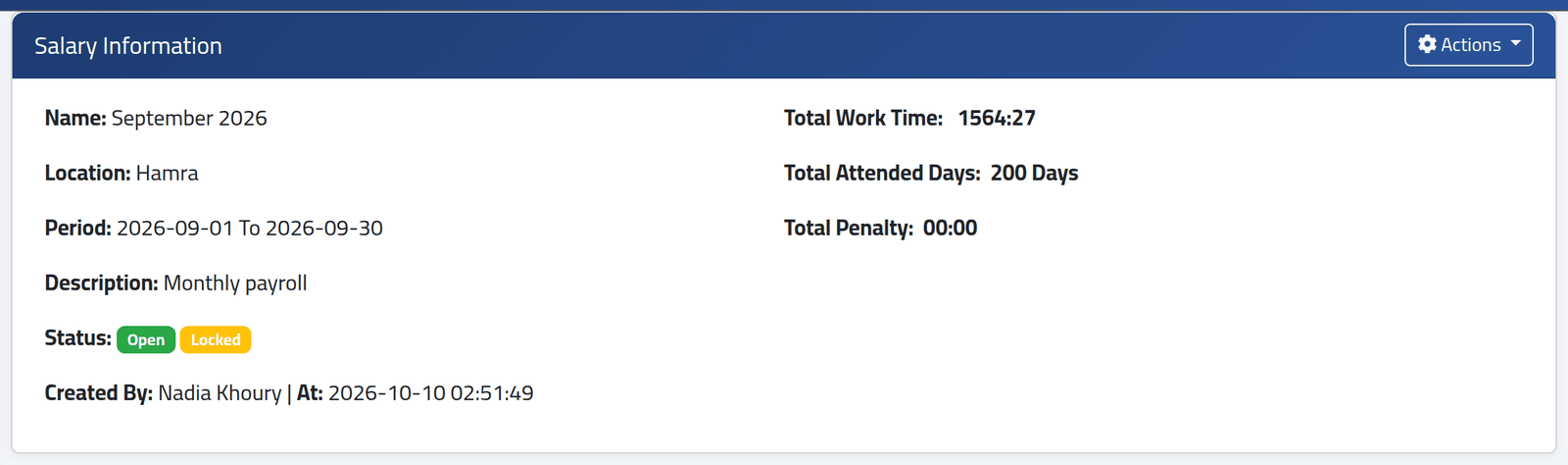
Open the period (see Reading a salary period). It should say Open and Locked. Look down Net Total once more.
2Close it
Click Actions, then Close Salary.
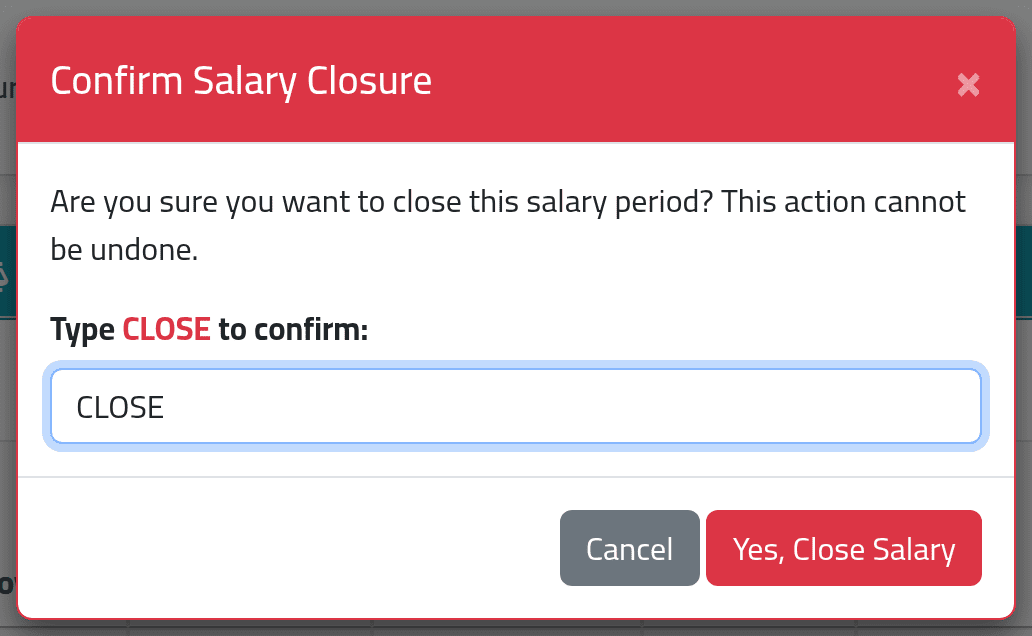
Type CLOSE in capitals. Yes, Close Salary becomes available. Click
it once and wait: it may take a moment for a large branch.
What happens next
Current Salaries opens with Salary closed and details generated.
The period is now Closed, with your name and the time beside Closed By. For each person, ClockWise has recorded:
- their hours, days, type and rate as they stood;
- their add-ons, adjustments, overtime value and Net Total;
- the loan instalments due by the period’s end, now marked paid;
- the exchange rates of the day, for anyone paid in another currency.
Each person’s salary is Pending until it is marked paid.
From now on, for the days inside the period:
- the attendance days have no Modify button, and Recalculating a branch leaves them alone;
- no schedule change may be dated inside it;
- the Adjustments screen will not accept a date inside it.
There is no way to reopen a closed period. A mistake found afterwards is put right with a post-close adjustment on the period — see Adjusting one period’s pay — not by changing the days.
If the next period does not exist yet, create it now — see Creating a salary period.
If it goes wrong
| What you see | What it means |
|---|---|
| Yes, Close Salary stays grey | CLOSE must be typed exactly, in capitals. |
| There is no Close Salary in Actions | The period is already closed, or your account may not close salaries. |
| Someone was paid at the wrong rate | The period cannot be reopened. Add a correction after closing, in Cash, on Adjusting one period’s pay. |
| A day in the period was approved after closing and the salary did not change | That is how it works: the salary was written down at closing. Correct the difference with a post-close adjustment. |